What a Tracking Audit Covers, and How to Run One

Qudees Kiani, founder · · 9 min read
Short answer
A tracking audit checks whether the numbers you make decisions with are real. It follows one purchase or lead through every layer: the website and consent banner, Tag Manager, any server container, GA4, the ad platforms and your orders. In our audits, many of the costliest problems sit between those tools, so checking one at a time misses them.
On this page
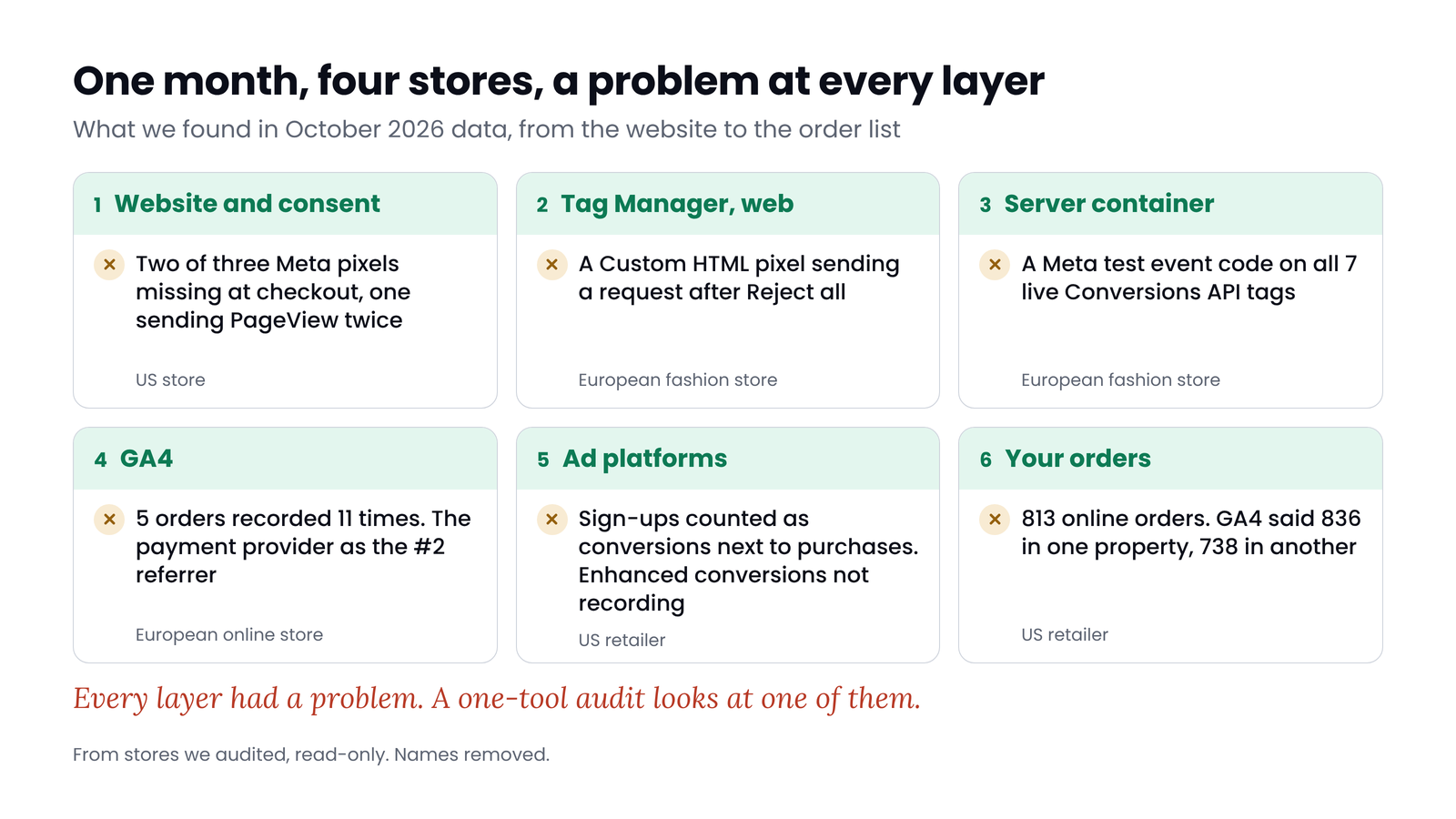
A one-tool audit only sees one tool, and the problems that change your numbers often sit between tools, or in the one nobody checked. A GA4 audit can pass while the server container sends Meta a test code. A Google Ads audit can pass while a pixel fires after the visitor clicks Reject all. In audits of four stores' October data, we found problems like these at every layer from the website to the order list. This guide covers what a tracking audit should check, layer by layer, which parts a tool can check and which need a person, and how to run one.
What a tracking audit is for
A tracking audit answers one question: can you trust the numbers you spend money on? It is not a GA4 audit or a Google Ads audit with a new name. Those check one tool's settings. A tracking audit checks the chain: what the website sends, what each tool receives, what each one counts, and whether the totals agree with what you sold.
The term also has a privacy meaning: an inventory of every tracker on a site, for compliance. That is part of it too, because tags that fire without consent change your numbers as well as your risk. This guide is not legal advice.
 (opens the full-size image in a new tab)
The six layers, and what to check in each
| Layer | What to check | What we found in October's data |
|---|---|---|
| 1. Website and consent | Tags load on every page of the purchase path, nothing loads twice, and nothing that needs consent fires before a choice or after a reject | Three Meta pixels on one store: in our check, two were missing at checkout and one sent PageView twice on every page we visited |
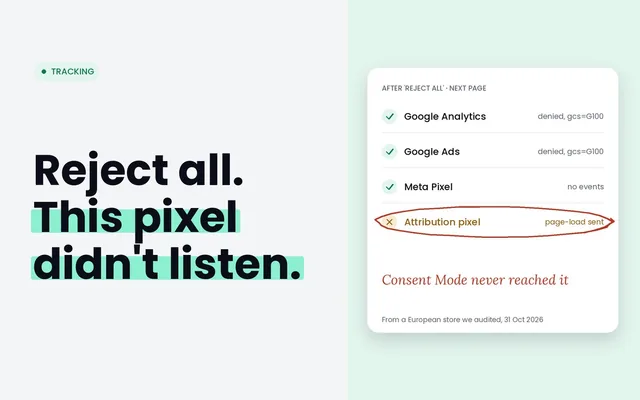
| 2. Tag Manager, web | Tags, triggers and consent settings; event IDs and transaction IDs passed correctly; unpublished changes | A third-party pixel in a Custom HTML tag on all pages sent a page-load request after Reject all |
| 3. Server container | Which events arrive, which tags forward them, test settings left in, and whether all traffic goes through it | A Meta test event code on all seven live Conversions API tags |
| 4. GA4 | Purchases with unique transaction IDs, values and currency, traffic sources, payment domains as referrals | 5 orders recorded 11 times, and the payment provider as the second-biggest referrer |
| 5. Ad platforms | Which actions bid, whether anything counts twice, enhanced conversions, Pixel and Conversions API deduplication | Sign-ups and a lead form counted as primary conversions next to purchases, and enhanced conversions not recording |
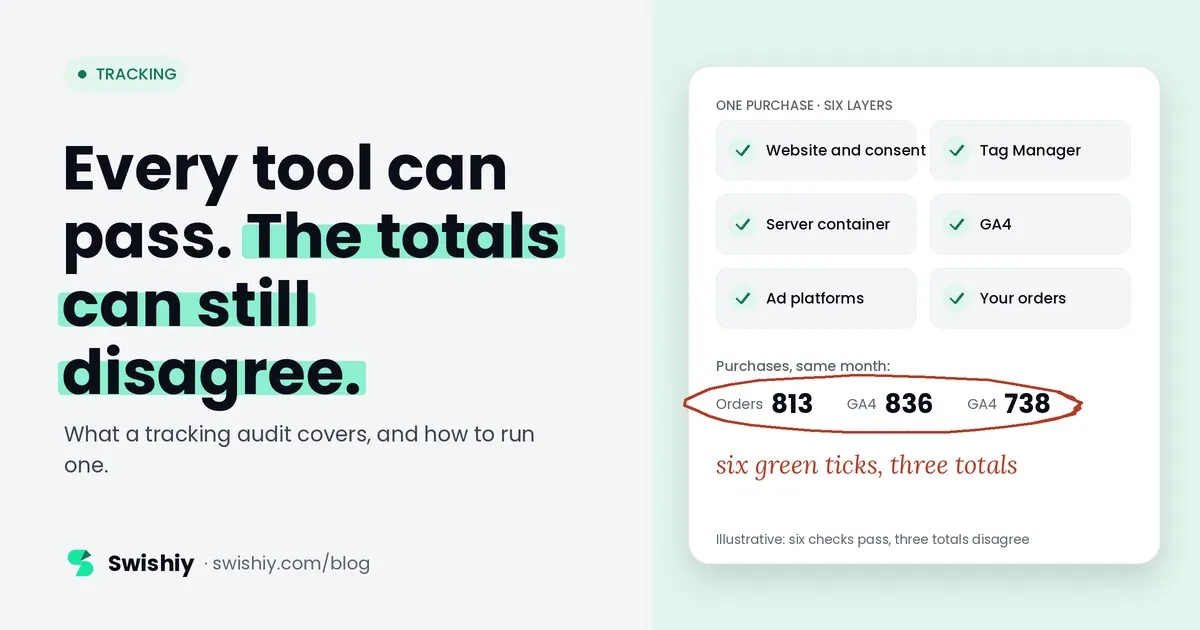
| 6. Orders | GA4 and each platform against the orders you took, on the same dates and definitions | Two GA4 properties for one store: 836 and 738 purchases, against 813 online orders |
Each of those has its own guide: checking pixels on every page, Consent Mode in Tag Manager, Pixel and Conversions API deduplication, payment pages taking credit in GA4, primary and secondary conversions and GA4 revenue against Shopify.
For the Tag Manager layer in full, see the Google Tag Manager audit checklist. On Shopify, start with the Shopify tracking audit.
The problems that only show up between tools
These are the ones a single-tool audit can't see, because each tool looks fine on its own:
- A GA4 import and a Google Ads tag both counting the purchase. Google Ads counts each conversion action on its own, so if both are primary, a sale that both record counts twice. That's why Google sets conversions imported from GA4 to secondary by default.
- A platform app and Tag Manager both sending. On Shopify, the Google & YouTube app and a Tag Manager setup can both send purchases to the same GA4 property or Ads account.
- Pixel and Conversions API without a shared event ID. Meta only discards the copy reliably when both carry the same event name and event ID.
- Consent that only covers Google. Consent Mode adjusts Google's own tags. Every other tag needs its own consent check, and a banner can work perfectly for Google while another pixel fires anyway.
- A server container that only sees part of the traffic, or forwards it with test settings. It looks healthy in its own preview, while some events go direct and others are marked as tests.
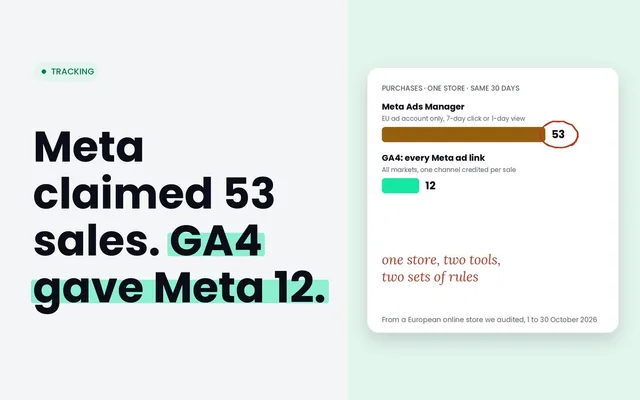
- Platforms that each claim the same order. Google Ads, Meta and GA4 each attribute with their own rules, so their totals added together usually exceed your orders. That is normal, but you need your orders as the yardstick.
To tell a tracking bug from platforms overlapping, see double counting conversions.
The method: follow one purchase through every layer
The quickest way to find problems between tools is to follow one real event end to end. For a shop that's a purchase; for a lead site, a form submission.
- Accept cookies and place a real order, or submit a real lead, with a payment method that redirects if you have one.
- Watch what the site sends. In the browser's Network tab or Tag Manager's preview, check that GA4, Google Ads and Meta each receive the purchase once, with the same order ID and value.
- Check the server container, if you have one: the event arrives, carries the event ID and transaction ID, and goes out to each platform without a test code.
- Find it in GA4: one purchase with that transaction ID, the right value and currency, and a sensible source.
- Find it in the platforms. In Meta's Test Events, a browser and a server event with the same event ID. Server events only show there while they carry a test code, so add one for the test and remove it straight after. In Google Ads, an order only shows as a conversion if it followed a click on one of your ads, so check in Tag Assistant that the conversion tag fired with the order ID and value.
- Find it in your orders, with the same order ID everywhere.
- Repeat with Reject all. This time only what your consent setup allows should be sent.
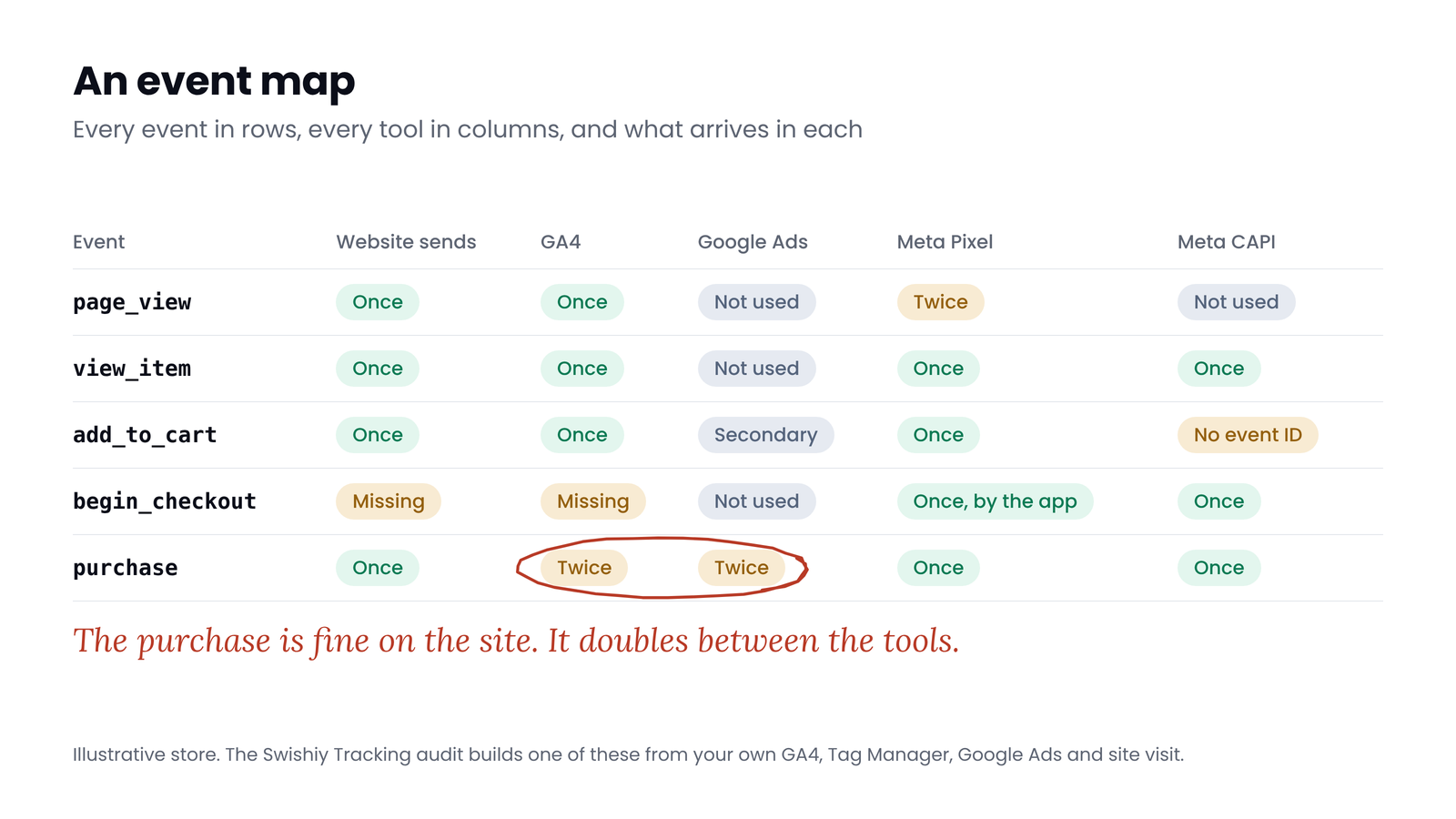
Then step back from the single order to the totals. An event map does that: every event in rows, every tool in columns, and in each cell whether it arrives, how often and with what.
 (opens the full-size image in a new tab)
What a tool can check, and what needs a person
| A tool can check | A person still needs to |
|---|---|
| Which tags load on each page, before and after a cookie choice | Place a real order and follow it through |
| Tag Manager settings: tags, triggers, consent settings, unpublished changes | Decide which events matter for the business |
| GA4 settings and report data: purchases, transaction IDs, traffic sources | Check offline conversions and what happens in the CRM |
| Google Ads conversion actions, goals and enhanced conversions status | Test payment methods, apps and in-app browsers |
| GA4 against an export of your orders, day by day | Fix tags and talk to whoever owns the site |
A tool is faster at the left column and never forgets a check. The right column is why an audit still needs a person who knows the business. A good tool tells that person where to look first.
How often to run one
We found no audit cadence from Google or Meta. A common pattern, and the one we use:
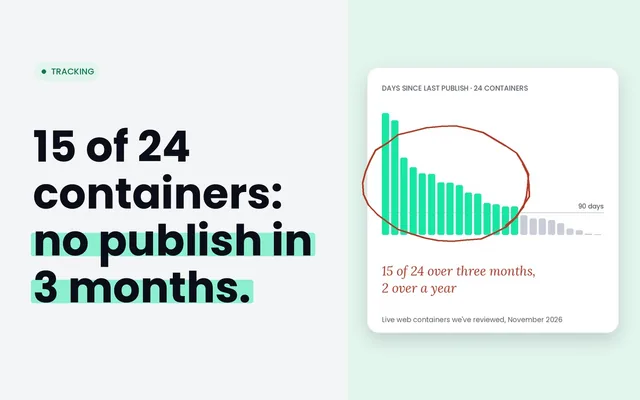
- After every change that touches tracking: a site release, a theme or checkout change, a new consent tool, a new app, or a Tag Manager publish.
- A full audit every quarter, because sites drift even when nobody touches the tags.
- A weekly glance at the totals: orders against GA4 purchases and platform conversions. A sudden change in the gap is the cheapest alarm you have.
Myth
If each tool passes its own audit, the tracking is fine.
Reality
Each tool can be set up correctly on its own and still disagree with the others. The problems that change your numbers most, such as double counting and consent gaps, usually sit between two tools.
Tracking audit checklist
Quick check
- Every page of the purchase path loads the same tags, once.
- Nothing that needs consent fires before a choice or after a reject.
- Tag Manager has no stale unpublished changes, and its tags pass the order ID and event ID.
- The server container receives what you expect and sends it on without test codes.
- GA4 purchases have unique transaction IDs, values and currency.
- No payment domains or your own domain among GA4's referral sources.
- One primary purchase action in Google Ads, and enhanced conversions recording.
- Meta's browser and server events share an event ID.
- GA4 and each platform compared with your orders for the same dates.
- A test order followed through every layer, with Accept and with Reject.
Ask yourself
The free Tracking audit reads GA4, Tag Manager and Google Ads together, visits your site before and after a cookie choice, and shows an Event map: every event, who sends it and where it is counted, with cross-checks for double counting and your revenue against your orders. Read-only. Run a tracking audit
Frequently asked questions
What is a tracking audit?
A check of whether your marketing data is accurate, across every layer: the website and consent banner, Tag Manager, any server container, GA4, the ad platforms and your orders. It looks for missing events, double counting, consent gaps and numbers that don't match your sales.
What is the difference between a tracking audit and a GA4 audit?
A GA4 audit checks one tool's settings and data. A tracking audit checks how the tools work together, which is where problems like double counting, missing event IDs and consent gaps usually sit.
Can I run a tracking audit myself?
Yes. Follow one real order through every layer with the browser's Network tab and each tool's debug view, then compare totals with your orders. A tool speeds up the settings checks, but placing the test order is still on you.
How often should I audit tracking?
After every change that touches tracking, such as a site release, a checkout or consent change, or a Tag Manager publish, plus a full audit every quarter. Compare orders with GA4 and platform totals weekly.
Is a tracking audit the same as a privacy audit?
They overlap. A tracking audit checks which tags fire before and after consent because that changes your data. A privacy audit goes further into legal requirements. This guide is not legal advice.
What tools do I need for a tracking audit?
A browser's developer tools, Tag Manager's preview mode, GA4's DebugView, Meta's Test Events and Google Ads' conversion diagnostics, plus an export of your orders. An audit tool can read most of the settings for you.
Sources
- Google Ads Help: Create conversions based on Google Analytics key events: https://support.google.com/google-ads/answer/10632359
- Google Ads Help: About conversion tracking: https://support.google.com/google-ads/answer/1722022
- Google Ads Help: Multi-source conversion diagnostics (beta): https://support.google.com/google-ads/answer/16288216
- Analytics Help: Remove duplicate tags after connecting the Google & YouTube app: https://support.google.com/analytics/answer/16424072
- Meta for Developers: Conversions API test events: https://developers.facebook.com/docs/marketing-api/conversions-api/using-the-api
- Analytics Help: Duplicate purchases and transaction IDs: https://support.google.com/analytics/answer/12313109
- Google Developers: Consent mode overview: https://developers.google.com/tag-platform/security/concepts/consent-mode
- Tag Manager Help: Consent settings for tags: https://support.google.com/tagmanager/answer/12962079
- Meta for Developers: Deduplicate Pixel and server events: https://developers.facebook.com/docs/marketing-api/conversions-api/deduplicate-pixel-and-server-events
- Google Developers: Server-side tagging: https://developers.google.com/tag-platform/tag-manager/server-side/intro
- Shopify Help: Pixels overview: https://help.shopify.com/en/manual/promoting-marketing/pixels/overview
- Shopify Help: Report discrepancies: https://help.shopify.com/en/manual/reports-and-analytics/discrepancies

Qudees Kiani
Founder of Swishiy. Five years of marketing measurement work across Google Ads, Meta and GA4, for ecommerce and lead-gen businesses.
Book a 30-minute callIs your Google Ads data telling the truth?
The free auditor checks tracking, brand vs non-brand and wasted spend. Automated, Google Ads only, 60 seconds.