Google Tag Manager Audit Checklist: 30 Checks for 2027

Qudees Kiani, founder · · 9 min read
Short answer
A Google Tag Manager audit checks five areas: what fires and when, consent settings, container health, any server container, and who can publish. A tool can read about a quarter of the checks from the container and flag most others. The rest need Preview, a test order or someone who knows the site. Start with the publish date.
On this page
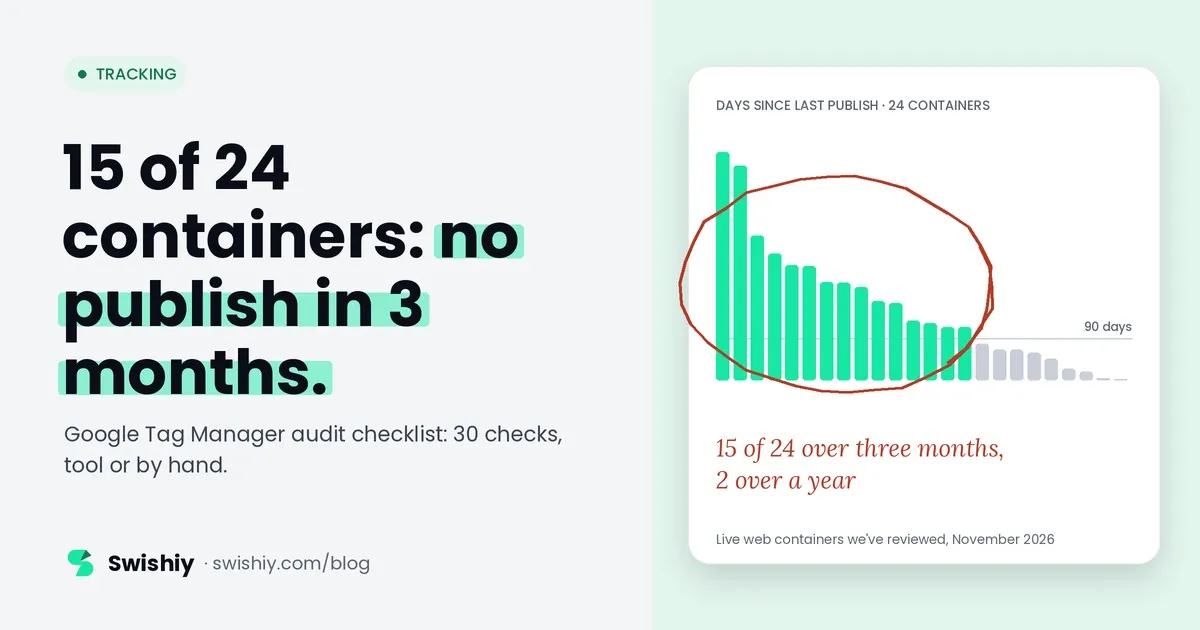
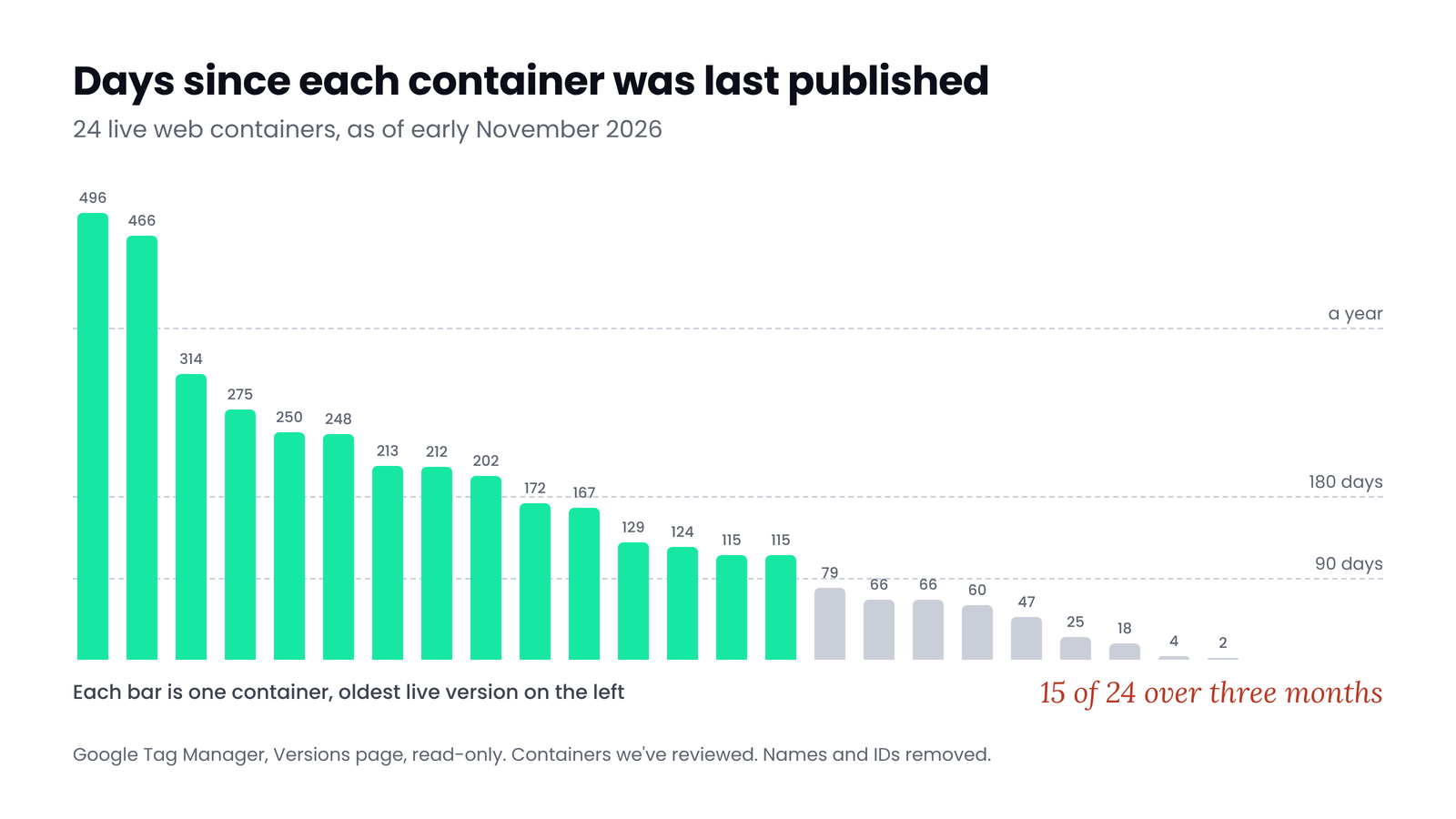
A container nobody has published in months is usually behind the site it tracks. In early November 2026 we read the publish dates of 24 live web containers we've reviewed. 15 hadn't been published in three months, 9 in six, and 2 in over a year. This checklist is the 30 checks we run in a Tag Manager audit, grouped by area, each marked as something a tool can read from the container or something that needs a person.
What a Tag Manager audit covers
A Tag Manager audit asks whether the container still does what the business needs: the right tags fire, once, with the right data, only with consent, and someone owns the changes. It doesn't replace a GA4 or Google Ads audit, because a perfect container can still send to a badly set up property. Our guide to tracking audits covers how the layers fit together.
 (opens the full-size image in a new tab)
A stale container isn't automatically broken: some sites don't change for months. But every site release, new checkout, new app or new consent tool is a change the container may not know about. The publish date is the quickest way to ask the question. Across 23 of them, 58% of the versions listed (up to the latest 50 per container) had a name, and Google's own container quality rating said Excellent for 19 of the 23 we could read, including one last published 16 months earlier.
Myth
Google's container quality says Excellent, so the container is fine.
Reality
The score checks whether tags send data and runs a list of diagnostics, such as a missing Conversion Linker or consent set up out of order. It doesn't know whether your tags still match your site, your checkout or your consent banner.
The checklist
Each check is marked Tool when a read-only tool can check it from the container, Partly when a tool can flag it but a person decides, and By hand when it needs Preview, the live site or business knowledge. You can download all 30 as a sheet and open it in Google Sheets or Excel.
A. What fires
| # | Check | What to look for | Who |
|---|---|---|---|
| 1 | Tags with no firing trigger | Tags that never fire and aren't used as a setup or cleanup tag | Tool |
| 2 | Paused tags | Paused tags nobody can explain. Delete them or note why they're kept | Partly |
| 3 | Duplicate tags | Two tags sending the same event to the same ID, or a pixel both as a template and in Custom HTML | Partly |
| 4 | Conversion tags on broad triggers | Purchase or lead tags on All Pages or a page view with no conditions | Partly |
| 5 | Catch-all custom event triggers | Custom event triggers matching every event. Since October 2026, Google tag config events also appear in the data layer and can fire them | Tool |
| 6 | Priority and sequencing on purpose | Setup and cleanup tags pointing at paused or deleted tags, and priorities nobody can explain | Partly |
| 7 | Key conversions fire once with the right data | In Preview, the purchase or lead fires once with the order ID, value and currency | By hand |
B. Consent and privacy
| # | Check | What to look for | Who |
|---|---|---|---|
| 8 | Consent Initialization holds the consent setup only | The consent tool or default consent tag on the Consent Initialization trigger, and no marketing tags there | Partly |
| 9 | No tags with consent left at Not set | The Consent Overview (turn it on in Container Settings) lists tags whose consent is still Not set | Tool |
| 10 | Tags without built-in checks require consent | Custom HTML tags and templates without built-in consent checks (often Meta, TikTok or Hotjar) set to require additional consent of the right type | Partly |
| 11 | Defaults land before tags and update on a choice | In Tag Assistant: the consent state before the banner, after accept and after reject | By hand |
| 12 | All four consent signals and regions set | ad_user_data and ad_personalization present, and region defaults that match your banner | Partly |
| 13 | Custom HTML reviewed | What each Custom HTML tag loads, whether it sends personal data, and whether a template could replace it | Partly |
| 14 | Template permissions | Which scripts and URLs each custom template is allowed to load or send to | Partly |
Consent is the costly one
C. Container health
| # | Check | What to look for | Who |
|---|---|---|---|
| 15 | Unpublished changes | How many changes sit in each workspace, how old they are, and who made them | Tool |
| 16 | Last publish against site changes | The live version's date, compared with the last redesign, checkout change or new app | Partly |
| 17 | Orphan triggers | Triggers no tag uses to fire or block | Tool |
| 18 | Unused variables | Variables nothing references. Check other tools before deleting one | Partly |
| 19 | Legacy tags | Universal Analytics tags, old gtag snippets in Custom HTML, and tags Google flags as legacy | Tool |
| 20 | Google tag and Conversion Linker | A Google tag or destination tag on every page, or a Conversion Linker on All Pages so it runs wherever an ad click can land | Partly |
| 21 | Container size | Google's size indicator on the Versions page, which appears once a container gets large. Google suggests optimizing above 70% | By hand |
| 22 | Names, folders and notes | One naming pattern, everything in a folder, notes on anything that isn't obvious | Partly |
D. Server container
| # | Check | What to look for | Who |
|---|---|---|---|
| 23 | First-party server URL | The server runs on your own domain (a path on your site or a subdomain), not the default cloud address, and the Google tag sends to it | Partly |
| 24 | Clients and their order | Which client claims GA4 traffic. The first client to claim a request wins | Tool |
| 25 | Hosting | At least two server instances, a separate preview server, and logging costs under control | By hand |
| 26 | Server tags succeed, with no test settings | In server Preview, outgoing requests return success codes, carry event IDs, and send no test event code | Partly |
E. Governance
| # | Check | What to look for | Who |
|---|---|---|---|
| 27 | User access | More than one admin, publish rights for a few named people, and no former staff or agencies | Partly |
| 28 | Version names and notes | Versions named after what changed, not left blank or as Version 57 | Partly |
| 29 | Environments | Staging snippets kept off production, and old environment links reset | Partly |
| 30 | An owner and a next audit date | A tag list that matches the container, a named owner, and a date for the next review | By hand |
How to run it in an afternoon
- Start with the dates. On the Versions page, note the live version, when it was published and by whom. In each workspace, note the number of unpublished changes.
- Read Google's own diagnostics. In the container's overview and the Google tag's settings, Tag Diagnostics lists issues such as a missing Conversion Linker, consent installed out of order, a missing transaction ID or conversions that may be overcounted. Check dismissed alerts too.
- Export the container under Admin, then Export container, for a record of what you audited. A tool can read most of sections A, C and D from it.
- Walk the site in Preview, with a real order or lead, once after accepting cookies and once after rejecting them.
- Check the server container in its own Preview during the same test, if you have one.
- Write down what you change, publish with a version name that says what changed, and set the next audit date.
What changed in 2025 and 2026
- April 2025: containers with Google Ads or Floodlight tags load a Google tag automatically. Check for a second Google tag doing the same job.
- August 2026: Google announced destination tags, a new Settings tab and an optional container optimization, and released them on 12 October. Optimizing links the container to your Google accounts and grants Read access by default, so check user management afterwards.
- September 2026: Google suggests version names and descriptions with AI. Read them before you accept, or your history fills with generic notes.
- October 2026: Google tag config events appear in the data layer. Custom event triggers that match every event may start firing tags you didn't expect.
Quick check
Quick check
- The live version was published after the last change to the site.
- No workspace holds old unpublished changes.
- Every tag has a trigger, and no tag is paused without a reason.
- Purchase and lead tags fire once, with an order ID and value.
- No tag has consent left at Not set, and non-Google tags require consent.
- Nothing fires after Reject all that shouldn't.
- A server container, if you have one, sends no test event codes.
- At least two admins, and only named people can publish.
Ask yourself
The free GTM Auditor reads your web and server containers, read-only, and runs the checks marked Tool and most of those marked Partly: unpublished changes and the live version's age, tags without triggers, duplicates, consent settings, Custom HTML, legacy tags, and Meta and Google tags on the server. It lists what still needs a person. Audit my containers
Frequently asked questions
How do I audit a Google Tag Manager container?
Start with the Versions page and unpublished changes, read Tag Diagnostics, then go through five areas: what fires, consent, container health, any server container, and user access. Finish with a test order in Preview, once after accepting cookies and once after rejecting them.
How often should I audit Google Tag Manager?
We suggest a check after every site release, checkout change or new consent tool, and a full audit every quarter. A live version older than your last site change is the clearest sign an audit is due.
What is container quality in Google Tag Manager?
Google's status for the container: Excellent, Good, Needs attention, Urgent or No recent data, based on whether tags send data and a list of diagnostics such as a missing Conversion Linker or consent set up out of order. It doesn't check whether your tags match your site.
Is it safe to delete unused variables in Tag Manager?
Check first. A variable can be used by another variable, a trigger condition, a template or a tag setting, and some tools read variables from outside the container. Delete in a workspace, test in Preview, then publish with a clear version name.
What is the Tag Manager container size limit?
Google shows a size indicator on the Versions page once a container gets large, and suggests optimizing once it passes 70%. The hard limit is widely reported as 200 KB, but Google's help pages don't state the figure.
Can a tool audit Tag Manager for me?
A read-only tool can check about a quarter of the list fully and flag most of the rest, such as tags without triggers, consent settings and unpublished changes. A person still needs to test a real order and decide what the business needs.
Sources
- Tag Manager Help: Release notes: https://support.google.com/tagmanager/answer/4620708
- Tag Manager Help: 2026 container updates: https://support.google.com/tagmanager/answer/17079602
- Tag Manager Help: Tag Diagnostics: https://support.google.com/tagmanager/answer/14681508
- Tag Manager Help: Workspaces: https://support.google.com/tagmanager/answer/7059647
- Tag Manager Help: Versions: https://support.google.com/tagmanager/answer/2699097
- Tag Manager Help: Consent settings: https://support.google.com/tagmanager/answer/10718549
- Google Developers: Consent mode overview: https://developers.google.com/tag-platform/security/concepts/consent-mode
- Tag Manager Help: Custom tags and templates: https://support.google.com/tagmanager/answer/6107167
- Tag Manager Help: Conversion Linker: https://support.google.com/tagmanager/answer/7549390
- Tag Manager Help: Container size: https://support.google.com/tagmanager/answer/2772488
- Tag Manager Help: User permissions: https://support.google.com/tagmanager/answer/6107011
- Tag Manager Help: Environments: https://support.google.com/tagmanager/answer/6311518
- Google Developers: Server-side tagging: https://developers.google.com/tag-platform/tag-manager/server-side/intro

Qudees Kiani
Founder of Swishiy. Five years of marketing measurement work across Google Ads, Meta and GA4, for ecommerce and lead-gen businesses.
Book a 30-minute callIs your Google Ads data telling the truth?
The free auditor checks tracking, brand vs non-brand and wasted spend. Automated, Google Ads only, 60 seconds.