How to Filter Bot Traffic in GA4 Without Losing a Lead

Qudees Kiani, founder · · 11 min read
Short answer
GA4 removes only bots on a known list, and you can't add your own. To filter the rest, flag suspect visits in Google Tag Manager with a traffic_type parameter, give your key events a different value, then create an Internal traffic data filter that excludes the flag. Test it for a few days before you set it to Active.
On this page
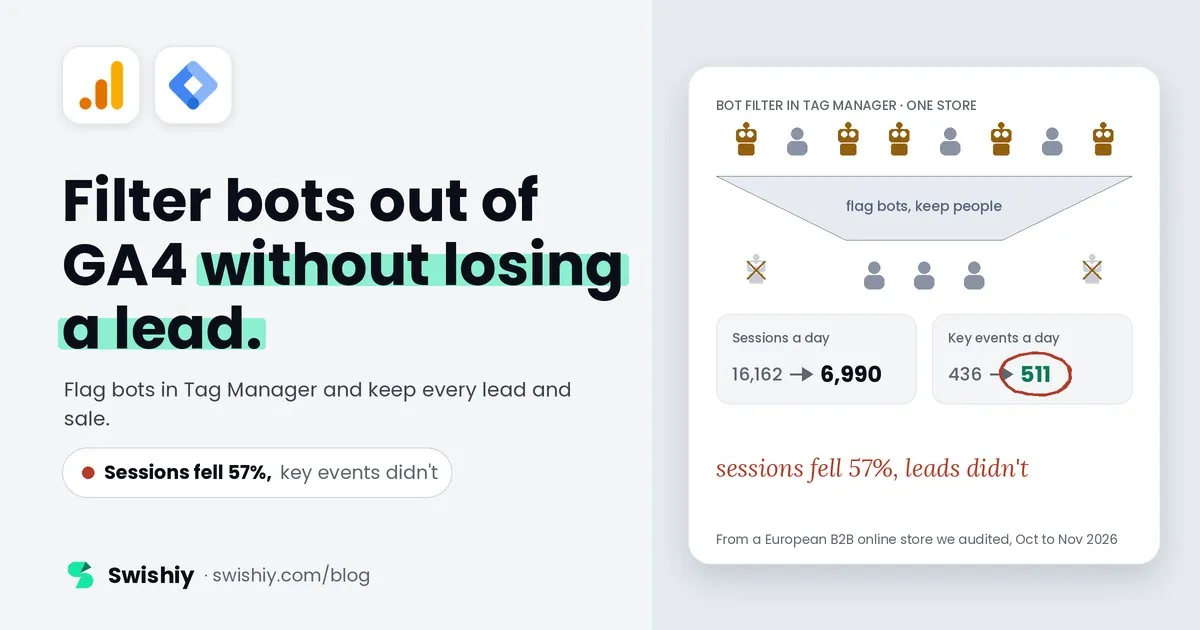
In the second half of October, a European B2B online store we audited saw its weekday sessions jump 69% while engaged sessions rose 5%. More than half of its sessions came from one crawler, and GA4's own bot filter didn't catch it. This guide shows how to flag that traffic in Google Tag Manager, keep every lead and sale out of the filter, and remove the rest from your reports from then on.
What GA4's bot filter does, and doesn't
GA4 already filters some bots. Google says "traffic from known bots and spiders is automatically excluded", using its own research and the International Spiders and Bots List. You can't switch it off, and you can't see what it removed.
The catch is the word known. A crawler that runs a real browser, runs your Google tag and changes its user agent isn't on that list. It arrives as a normal visitor, usually in Direct or Unassigned, with almost no engagement and no key events.
GA4 also has no setting for a bot rule of your own. Data filters cover three kinds of traffic only: developer, internal and web hostname. There's no filter for screen size, browser version or country. So the rule has to live in your tags, and GA4 has to be told which events to drop.
Two more limits shape everything below. Google says "Data filters do not affect historical data", and once a filter is Active, "the excluded data is never processed". You clean the future, not the past, and you can't undo it.
It's worth doing anyway, because the damage isn't only in reports. Every page a bot loads is a page view, and page views build the audiences you share with Google Ads. Our post on what bot traffic does to Google Ads covers that side.
How filtering bot traffic in GA4 works
The method borrows GA4's internal traffic filter. Google says GA4 adds a traffic_type parameter to internal events, and that "You can also manually add the parameter to your events." So you add it yourself, from Google Tag Manager, only when a visit looks like a bot.
A small JavaScript variable checks a few browser signals: the screen size, navigator.webdriver, and the Chrome version against the client hints a real Chrome exposes. When one matches, the Google tag sends traffic_type=bot with every event. A data filter on the value bot then drops those events before GA4 processes them.
Your key event tags send a different value. If a flagged visitor sends a lead or buys, that event goes out with traffic_type=bot_conversion, which the filter doesn't match. A false positive keeps its lead. It can lose the lead's source, though, because the filter drops that visitor's page views, landing page included.
 (opens the full-size image in a new tab)
These are the rules we used for one store's wave. Treat them as a starting point, not a list to copy: base yours on what your own data shows.
| Signal in the browser | bot_reason value | Why it points to a bot |
|---|---|---|
navigator.webdriver is true | webdriver | The browser says automation is driving it |
| Screen 1280x1200 | screen_1280x1200 | The size practitioners tie to the Singapore waves, and the one behind this store's wave |
| Screen 1600x1600 or 1366x1366 | screen_1600x1600, screen_1366x1366 | Square desktop screens almost no real monitor has |
| Screen 800x600 | screen_800x600 | An old default window size in automation tools |
| Chrome older than 140 at 1280x720 | old_chrome_1280x720 | An outdated browser on a default window size |
| Chrome 133 or older with no client hints | reduced_ua_le133 | Real Chrome exposes client hints to JavaScript on HTTPS pages. A Chrome user agent string pasted into another browser usually comes without them |
Send the matching rule as a second parameter, bot_reason, and register it as an event-scoped custom dimension. When the next wave changes shape, it tells you which rule caught what. A standard property allows 50 event-scoped custom dimensions, so one is cheap.
What to keep out of the filter, by business type
The filter is only as safe as the events you keep out of it. We exempt every key event, so the filter can never change a number Google Ads might bid on. Here's what that means by the kind of site.
| Business type | Always exempt | Leave filtered | Watch after go-live |
|---|---|---|---|
| Online store | purchase, plus any other key event such as add_to_cart | page_view, view_item, scroll, view_search_results | Purchases from flagged visits: should be zero or close |
| Lead gen | generate_lead, booking and call confirmations | page_view, scroll, clicks | Form spam. A bot that submits forms needs protection on the form, not in GA4 |
| SaaS | sign_up, trial start, purchase | Feature and pricing page views | Sign-ups from flagged visits, which may be fake accounts |
| Content site | Newsletter sign-up | Everything else | Engagement rate by landing page |
The exemption has one small cost. A flagged visitor's conversion still counts, but the page views around it are dropped, so GA4 may show it with less detail: a landing page of (not set), and possibly no source. That's rare, and it's better than losing the conversion. Check flagged conversions while the filter is in Testing.
Active is permanent
What we found in one audit
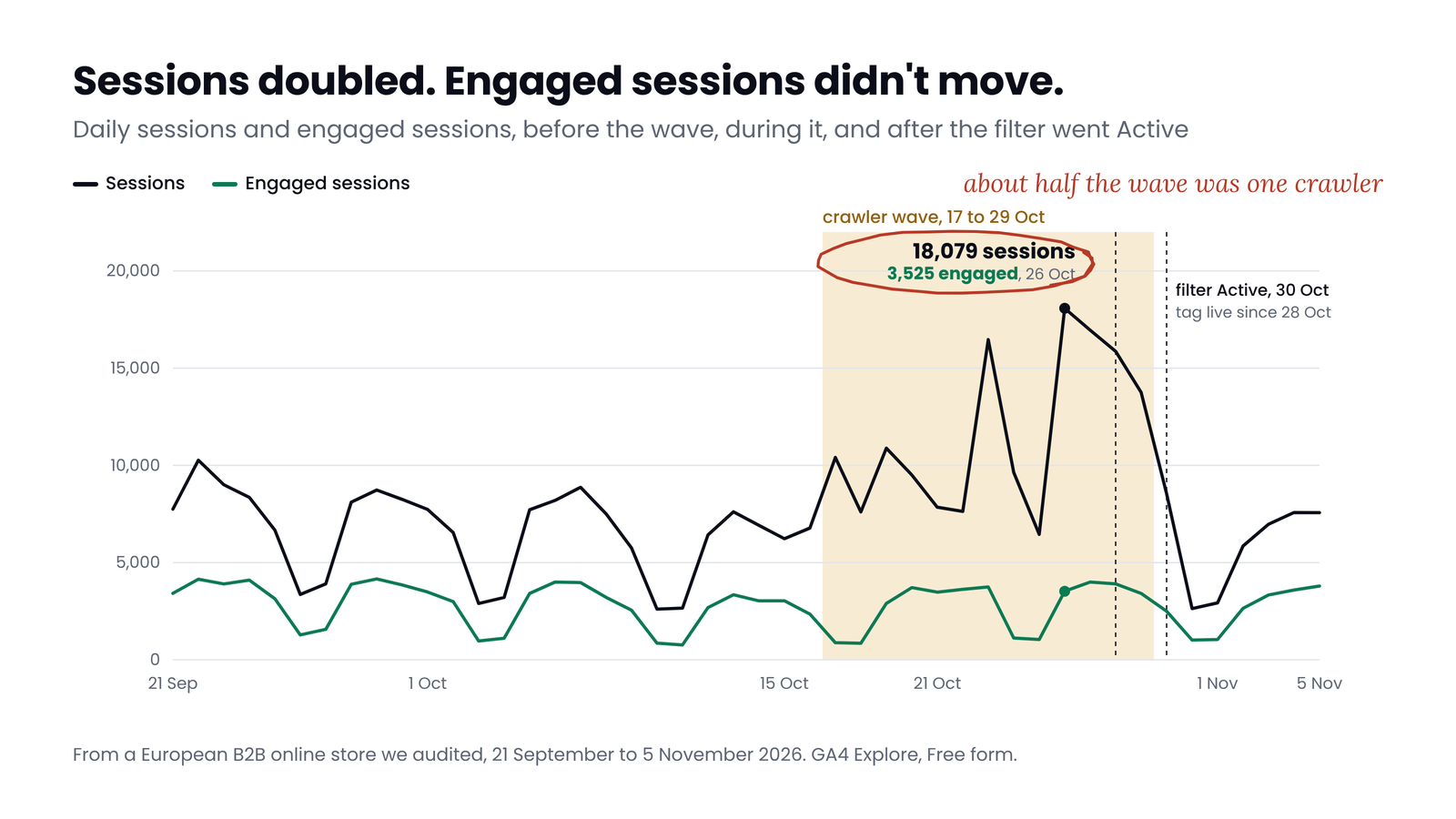
The store above sells to businesses across Europe and the US. Before the wave, its weekdays averaged 7,669 sessions at an engagement rate of 44.7% (21 September to 16 October 2026). From 17 October the sessions climbed and the engaged sessions didn't. From 26 to 29 October it averaged 16,162 sessions a day at an engagement rate of 23.0%.
Screen resolution gave it away. Between 17 and 29 October, 52% of sessions reported a 1280x1200 screen: 82,096 of them. Only 3.0% of them were engaged, and they produced 0 key events. A normal 1920x1080 desktop in the same period was engaged 41.6% of the time.
We published the fingerprint tag with the filter in Testing. On its first two full days, 28 and 29 October, the tag flagged 52% of each day's sessions. Those sessions had 0 key events. The untagged sessions had all 808.
The filter went Active on 30 October. From 2 to 5 November, sessions averaged 6,990 a day, 57% below the peak. Engaged sessions fell 10%, because the crawler had a few engaged sessions of its own. Key events held at 511 a day, inside their range for the four weeks before the wave. The filter didn't add any: it only removes events, and the flagged ones had none. The engagement rate went to 47.8%, a little above the 44.7% before the wave, because some of the same crawler was already there in September.
 (opens the full-size image in a new tab)
How the store went from the first spike to clean reports is in the case study.
How to filter bot traffic in GA4, step by step
- Prove it's bots first. In Explore, build a Free form with Date, Screen resolution, Country and Browser version as rows, and Sessions, Engaged sessions and Key events as values. Bots show up as a few screen sizes or browser versions with huge session counts, almost no engagement and no key events. If Singapore is involved, our post on the 1280x1200 Singapore crawler shows what to look for.
- Write the fingerprint variable. In Google Tag Manager, create a Custom JavaScript variable that returns a reason, like
screen_1280x1200, when a rule matches, and returns nothing otherwise. Base the rules on what you found in step 1, not on someone else's list. - Add two parameters to your Google tag. In the Google tag's Shared event settings, or a Google Tag: Event Settings variable, add
traffic_type, set tobotwhen the reason variable has a value, andbot_reason, set to the reason itself. Every event from that page now carries the flag. - Exempt your key events. On each tag that sends a key event, add
traffic_typeas an event parameter, set tobot_conversionwhen the visit is flagged. Then open Tag Assistant in a flagged browser and check that the key event carriesbot_conversion, notbot. If a key event is built in GA4 with Create event, for example from a thank-you page view, it copies the source event's parameters by default,traffic_type=botincluded: check those in Testing, and rebuild any that match as a tag in Google Tag Manager. Our post on which GA4 key events to mark helps if the list has grown. - Register Bot reason. In Admin > Data display > Custom definitions, create an event-scoped custom dimension for
bot_reason. Google says it can take 24 to 48 hours before you can report on it. - Create the data filter in Testing. In Admin > Data collection and modification > Data filters, choose Create filter, then Internal traffic. Set the Filter operation to Exclude, enter
botas the value fortraffic_type, and set the Filter state to Testing. - Check what it would remove. In Testing, GA4 marks matching events with the "Test data filter name" dimension. Compare flagged and unflagged traffic for a few days: flagged traffic should have almost no engagement and no key events. If a rule catches real buyers, drop the rule.
- Set it to Active and watch your key events. Switch the Filter state to Active. Sessions should drop and key events shouldn't. Keep an eye on Bot reason: a new crawler shows up as (not set) with the same low-engagement pattern, and you add a rule.
If you'd rather have the tag and the filter set up for you, book a call.
Myth
Once the filter is on, the bot problem is solved.
Reality
The filter cleans GA4 and nothing else. The crawler still loads your pages and still reaches your server. It also changes: in the store above, a crawler with a 1280x1280 screen led in September, and a 1280x1200 one surged in October. Treat the rule list as something you review, not something you set once.
Quick check
Quick check
- You can name the screen resolution or browser version behind your last traffic spike.
- Your bot-flagged sessions have zero key events.
- Every key event tag sends its own traffic_type value, so the filter can't drop it.
- The filter spent at least a few days in Testing before you switched it on.
- Bot reason is registered as a custom dimension, so you can see which rule fired.
- Key events held steady after the filter went Active.
- You review the rules when Direct or Unassigned jumps again.
Ask yourself
The free Tracking audit doesn't look for bots. It puts each key event in one row: what sends it, what GA4 counts and which Google Ads actions record it. Run it before and after you switch a filter on, to check that the numbers Google Ads bids on haven't moved. Run my tracking audit
Frequently asked questions
Does GA4 filter bot traffic automatically?
Yes, but only bots it already knows. Google excludes traffic from known bots and spiders using its own research and the International Spiders and Bots List, and you can't see or change what it removes. Crawlers that run a real browser and your Google tag aren't on that list, so they reach your reports.
Can I filter GA4 traffic by screen resolution?
Not directly. GA4 data filters work on developer, internal and web hostname traffic, not on dimensions like screen resolution. To filter by it, check the screen size in Google Tag Manager, send traffic_type=bot when it matches, and create an Internal traffic data filter that excludes the value bot.
Will a GA4 data filter remove bot traffic from past reports?
No. Google says data filters don't affect historical data. They apply from when they take effect, up to 36 hours after you set them. For past dates, build an Explore segment that excludes the bot pattern, and note the date the filter went Active.
Can I use a segment instead of a data filter?
For analysis, yes. A segment in Explore hides the traffic in that exploration and works on past data, as far back as your data retention setting allows. It doesn't change the standard reports, your Google Ads audiences or anything you export, so it's a view, not a fix.
How do I check a bot filter before it removes anything?
Create it with the Filter state set to Testing. GA4 then marks matching events with the "Test data filter name" dimension instead of removing them. Compare engagement and key events for flagged and unflagged traffic, and switch to Active only once flagged traffic shows no real activity.
Will filtering bots remove real leads?
It can if your rules are too broad and your key events aren't exempt. Send a different traffic_type value on your key event tags, so a flagged visitor who converts is still counted. In the audit above, flagged sessions had 0 key events over the two days we compared.
Why doesn't GA4 filter this traffic by itself?
Because these crawlers look like visitors. They run a real browser, run your tags and change their user agent, so a list of known bots can't catch them. Practitioners spot them by patterns, like one screen size across many countries, and that pattern is specific to the sites being crawled.
Sources
- Analytics Help: Known bot-traffic exclusion: https://support.google.com/analytics/answer/9888366
- Analytics Help: Data filters: https://support.google.com/analytics/answer/10108813
- Analytics Help: Filter out internal traffic: https://support.google.com/analytics/answer/10104470
- Analytics Help: Compare filters, subproperties and user roles: https://support.google.com/analytics/answer/12996377
- Analytics Help: About custom dimensions and metrics: https://support.google.com/analytics/answer/14240153
- Analytics Help: Reuse event settings in Google Tag Manager: https://support.google.com/analytics/answer/13438771
- Tag Manager Help: Set up Google Analytics in Tag Manager: https://support.google.com/tagmanager/answer/9442095
- Google for Developers: Data API dimensions and metrics (Test data filter name): https://developers.google.com/analytics/devguides/reporting/data/v1/api-schema
- Analytics Mania: How to exclude a country from Google Analytics 4 (2026): https://www.analyticsmania.com/?p=26956
- Paint Color HQ on GitHub: tagging bot traffic with traffic_type and an Internal traffic filter (2026): https://github.com/pcameron80/paintcolorhq/pull/174

Qudees Kiani
Founder of Swishiy. Five years of marketing measurement work across Google Ads, Meta and GA4, for ecommerce and lead-gen businesses.
Book a 30-minute call
Is your Google Ads data telling the truth?
The free auditor checks tracking, brand vs non-brand and wasted spend. Automated, Google Ads only, 60 seconds.


